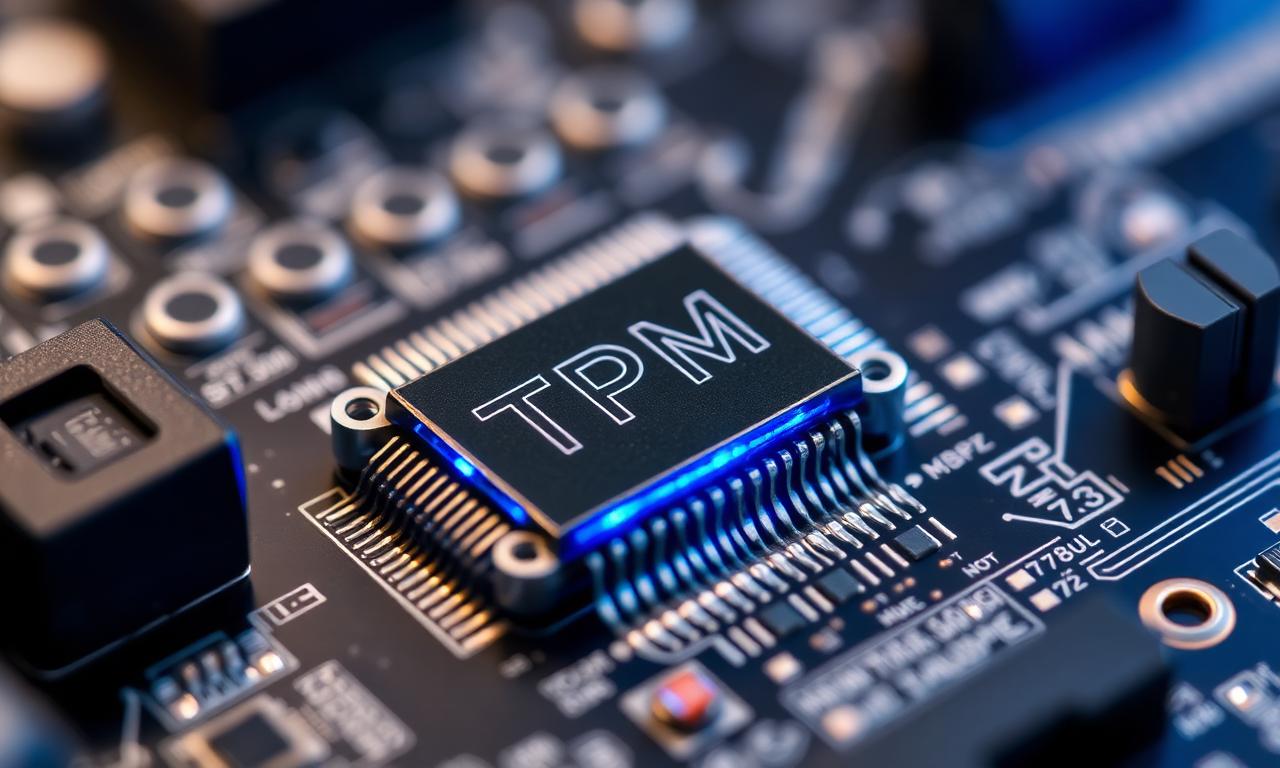
TPM 2.0 has gone from an obscure feature to a requirement — Windows 11 needs it, and some anti-cheats now do too. The good news is that most PCs from the last several years already have it; it just may not be switched on.
First, check if it is already on
Before changing anything, see what you have. Press Windows + R, type tpm.msc and press Enter. The TPM management window will either show that a TPM is present and ready, with a specification version, or report that no compatible TPM is found. If it is present and version 2.0, you are done — nothing to enable.
Where the setting lives
If it is not enabled, the setting is in your firmware — the BIOS/UEFI screen you reach by pressing a key (often Delete, F2 or F10) right after powering on. The TPM option is usually under a "Security" or "Advanced" section. Save and exit after changing it.
It is often not called "TPM"
This is where people get stuck: the setting frequently does not say "TPM." Most modern PCs have a firmware-based TPM built into the processor, and the menu names it after the chip vendor. On Intel systems look for Intel PTT (Platform Trust Technology). On AMD systems look for AMD fTPM (firmware TPM). Enabling that is enabling your TPM.
After enabling it
Save the firmware changes and let Windows boot. Run tpm.msc again to confirm it now reports a ready TPM 2.0. If your PC is older and genuinely has no TPM option at all, a TPM may be addable via a motherboard header — but for most machines, it was there all along, just disabled.
The takeaway
Enabling TPM 2.0 is usually a matter of finding one firmware setting — and remembering it is likely named Intel PTT or AMD fTPM, not "TPM." Check first with tpm.msc, change the firmware setting if needed, and confirm afterwards.